
vim使用说明
Modal editing
Normal: for moving around a file and making edits
打开文件默认模式,
<ESC>回到NormalInsert: for inserting text
Normal模式,输入iReplace: for replacing text
Normal模式,输入rVisual (plain, line, or block): for selecting blocks of text
Normal模式,输入v,V,ctrl + v- 多行操作模式
Command-line: for running a command
输入
:后即进入命令行模式
Basics
Command-line
:qquit (close window):wsave (“write”):wqsave and quit也可以使用
ZZ:e {name of file}open file for editing:lsshow open buffers:help {topic}open help:help :wopens help for the:wcommand:help wopens help for thewmovement
Movement
Basic movement:
hjkl(left, down, up, right)Words:
w(next word),b(beginning of word),e(end of word)Lines:
0(beginning of line),^(first non-blank character),$(end of line)Screen:
H(top of screen),M(middle of screen),L(bottom of screen)Scroll:
Ctrl-u(up),Ctrl-d(down)File:
gg(beginning of file),G(end of file)Line numbers:
:{number}<CR>or{number}G(line {number})跳到指定行,
<CR>表示回车Misc:
%(corresponding item)跳到匹配的位置,如
[和],(和)Find:
f{character},t{character},F{character},T{character}- find/to forward/backward {character} on the current line
,/;for navigating matches
Search:
/{regex},n/Nfor navigating matches
Selection
Visual modes:
Visual:
vVisual Line:
VVisual Block:
Ctrl-v- 搜索(
/)需要操作的最后一行单词,即可选中多行 - 再使用
Shift + i操作选中的首行开头,比如注释,后面选中的行在按esc后,即可批量应用 - 再使用
$+Shift + a操作选中的首行结尾,比如分号,后面选中的行在按esc后,即可批量应用
- 搜索(
或者使用
:norm Iaaa在选中的行首批量添加aaa,反之Aaaa在行尾添加aaa- 选择:
v + i + "选择"中的内容,v + a + "选择包含"及其内的内容,选择后使用y即可复制
在WSL中是默认是粘贴,需要按照 参考2 进行修改,即修改
paste默认的ctrl + v修改成ctrl + shift + v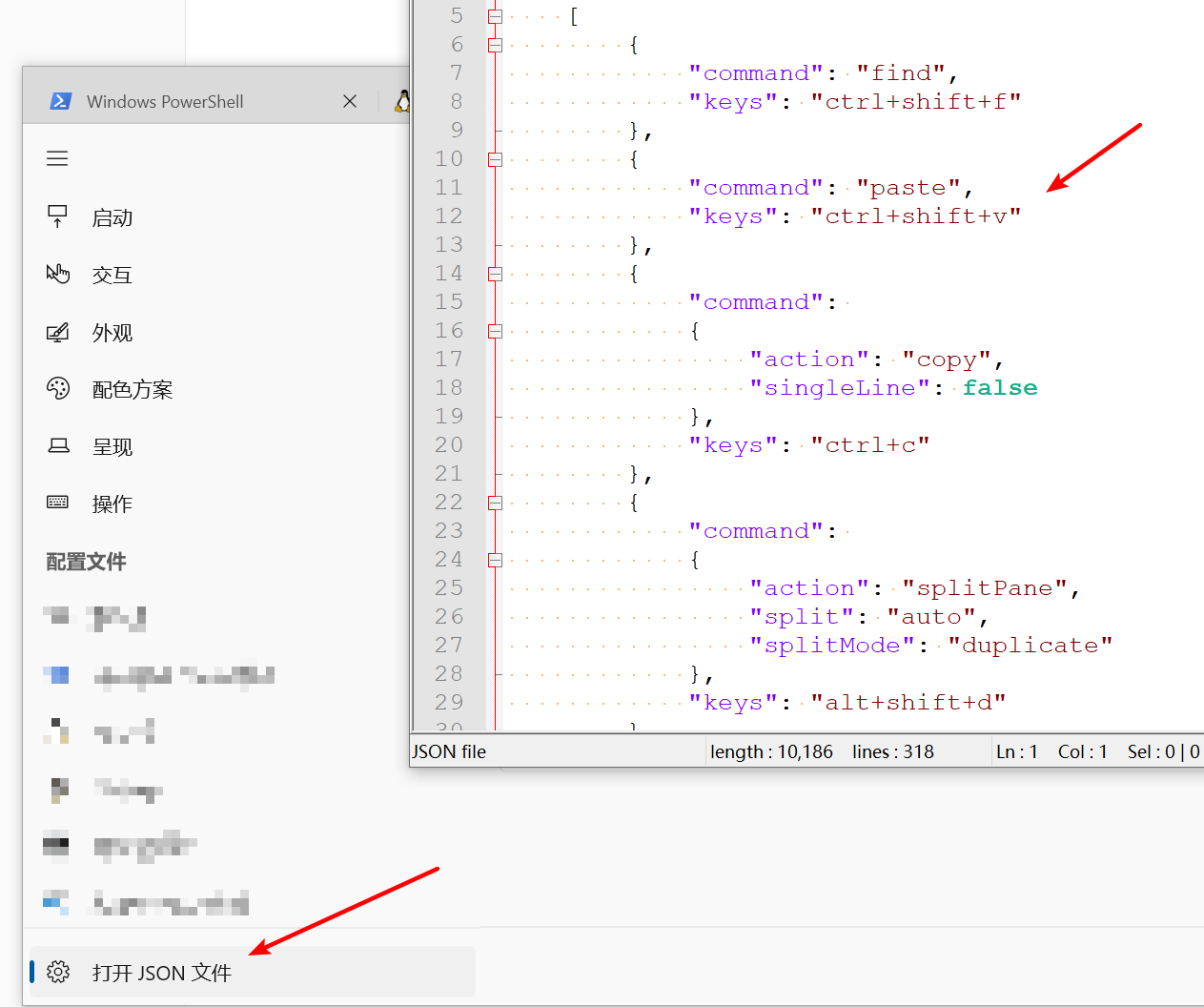
- 选择:
Edits
ienter Insert mode- but for manipulating/deleting text, want to use something more than backspace
shift + iInsert at start of selection (also called capital i)o/Oinsert line below / aboved{motion}delete {motion}- e.g.
dwis delete word,d$is delete to end of line,d0is delete to beginning of line
- e.g.
c{motion}change {motion}e.g.
cwis change wordlike
d{motion}followed byi即
c{motion}删除后,进入insert模式
xdelete character (equal dodl)ssubstitute character (equal tocl)Visual mode + manipulation
- select text,
dto delete it orcto change it
- select text,
uto undo,<C-r>to redoyto copy / “yank” (some other commands likedalso copy).to duplicate the previous operationpto pasteLots more to learn: e.g.
~flips the case of a character
Counts
3wmove 3 words forward5jmove 5 lines down7dwdelete 7 words
Modifiers
[count] [operation] [motion]the pattern of Vim normal mode operator commandsci(change the contents inside the current pair of parenthesesci[change the contents inside the current pair of square bracketsda'delete a single-quoted string, including the surrounding single quotesdi"delete inside “ (quotes)dt"delete till “ (quotes)yi"yank inside “ (copy)
Customizing Vim
修改
~/.vimrc课程提供
vimrc1
2
3
4
5
6
7
8
9
10
11
12
13
14
15
16
17
18
19
20
21
22
23
24
25
26
27
28
29
30
31
32
33
34
35
36
37
38
39
40
41
42
43
44
45
46
47
48
49
50
51
52
53
54
55
56
57
58
59
60
61
62
63
64
65
66
67
68
69
70
71
72
73
74
75
76
77
78
79
80" Comments in Vimscript start with a `"`.
" If you open this file in Vim, it'll be syntax highlighted for you.
" Vim is based on Vi. Setting `nocompatible` switches from the default
" Vi-compatibility mode and enables useful Vim functionality. This
" configuration option turns out not to be necessary for the file named
" '~/.vimrc', because Vim automatically enters nocompatible mode if that file
" is present. But we're including it here just in case this config file is
" loaded some other way (e.g. saved as `foo`, and then Vim started with
" `vim -u foo`).
set nocompatible
" Turn on syntax highlighting.
syntax on
" Disable the default Vim startup message.
set shortmess+=I
" Show line numbers.
set number
" This enables relative line numbering mode. With both number and
" relativenumber enabled, the current line shows the true line number, while
" all other lines (above and below) are numbered relative to the current line.
" This is useful because you can tell, at a glance, what count is needed to
" jump up or down to a particular line, by {count}k to go up or {count}j to go
" down.
set relativenumber
" Always show the status line at the bottom, even if you only have one window open.
set laststatus=2
" The backspace key has slightly unintuitive behavior by default. For example,
" by default, you can't backspace before the insertion point set with 'i'.
" This configuration makes backspace behave more reasonably, in that you can
" backspace over anything.
set backspace=indent,eol,start
" By default, Vim doesn't let you hide a buffer (i.e. have a buffer that isn't
" shown in any window) that has unsaved changes. This is to prevent you from "
" forgetting about unsaved changes and then quitting e.g. via `:qa!`. We find
" hidden buffers helpful enough to disable this protection. See `:help hidden`
" for more information on this.
set hidden
" This setting makes search case-insensitive when all characters in the string
" being searched are lowercase. However, the search becomes case-sensitive if
" it contains any capital letters. This makes searching more convenient.
set ignorecase
set smartcase
" Enable searching as you type, rather than waiting till you press enter.
set incsearch
" Unbind some useless/annoying default key bindings.
nmap Q <Nop> " 'Q' in normal mode enters Ex mode. You almost never want this.
" Disable audible bell because it's annoying.
set noerrorbells visualbell t_vb=
" Enable mouse support. You should avoid relying on this too much, but it can
" sometimes be convenient.
set mouse+=a
" Try to prevent bad habits like using the arrow keys for movement. This is
" not the only possible bad habit. For example, holding down the h/j/k/l keys
" for movement, rather than using more efficient movement commands, is also a
" bad habit. The former is enforceable through a .vimrc, while we don't know
" how to prevent the latter.
" Do this in normal mode...
nnoremap <Left> :echoe "Use h"<CR>
nnoremap <Right> :echoe "Use l"<CR>
nnoremap <Up> :echoe "Use k"<CR>
nnoremap <Down> :echoe "Use j"<CR>
" ...and in insert mode
inoremap <Left> <ESC>:echoe "Use h"<CR>
inoremap <Right> <ESC>:echoe "Use l"<CR>
inoremap <Up> <ESC>:echoe "Use k"<CR>
inoremap <Down> <ESC>:echoe "Use j"<CR>个人使用配置
1
2
3
4
5
6
7
8
9
10
11
12
13
14
15
16
17
" 在文件中加入以下几行代码
set autoindent
set cindent
set shiftwidth=4
set softtabstop=4
set tabstop=4
set nu
autocmd FileType yaml setlocal ts=2 sts=2 sw=2 expandtab
" 各参数含义
" set autoindent //自动缩进
" set cindent //C自动缩进
" set shiftwidth=4 //自动缩进空白字符个数
" set softtabstop=4 //tab键的一个制表符,如果softtabstop=5,tabstop=4,则tab是1个制表符加1个空格的混合
" set tabstop=4 //tab键的空格数
" set nu //默认设置行号
" 检测为 yaml 文件时,调整 tab 缩进为 2
Advanced Vim
Search and replace
:s (substitute) command (documentation).
:%s/foo/bar/gci- replace foo with bar globally in file
不带
%只会修改当前行,带%会修改所有行不带
g只会修改每行第一个,带g会修改整个文件不带
c会直接修改,带c会依次询问每一个是否修改不带
i精准匹配(带I表示同样含义),带i忽略大小写
:%s/\[.*\](\(.*\))/\1/g- replace named Markdown links with plain URLs
:5,12s/foo/bar/g- Change each ‘foo’ to ‘bar’ for all lines from line 5 to line 12 (inclusive).
\s表示空格,\t表示 tab,\+表示匹配多个前面的字符:%s/pattern//gn- 记录
pattern出现次数
- 记录
:%s/$/pattern/g- 给文件的每一行,末尾加上
pattern,特殊字符如/需要转义成\/
- 给文件的每一行,末尾加上
:%s/^/pattern/g- 给文件的每一行,开头加上
pattern,特殊字符如/需要转义成\/
- 给文件的每一行,开头加上
Multiple windows
:sp/:vspto split windows,:term: open a new terminal:sp纵向(快捷键ctrl + w + s),:vsp横向(ctrl + w + v),多个窗口内容一致:q退出其中一个窗口ctrl + w + 方向键或者ctrl + w + h/j/k/l朝某个方向切换窗格ctrl + ww按创建顺序切换到下一个窗格中
:termopen a new terminalctrl + w + Nswitch terminal to normal modeAswitch back to regular terminalctrl + w + ""paste default register
Can have multiple views of the same buffer.
Macros
- 宏录制,复制操作指令,可用于相同格式的统一替换
q{character}to start recording a macro in register{character}qto stop recording@{character}replays the macro- Macro execution stops on error
{number}@{character}executes a macro {number} times- Macros can be recursive
- first clear the macro with
q{character}q - record the macro, with
@{character}to invoke the macro recursively (will be a no-op until recording is complete)
- first clear the macro with
- Example: convert xml to json (file)
- Array of objects with keys “name” / “email”
- Use a Python program?
- Use sed / regexes
g/people/d%s/<person>/{/g%s/<name>\(.*\)<\/name>/"name": "\1",/g- …
- Vim commands / macros
Gdd,ggdddelete first and last lines- Macro to format a single element (register
e)- Go to line with
<name> qe^r"f>s": "<ESC>f<C"<ESC>q
- Go to line with
- Macro to format a person
- Go to line with
<person> qpS{<ESC>j@eA,<ESC>j@ejS},<ESC>q
- Go to line with
- Macro to format a person and go to the next person
- Go to line with
<person> qq@pjq
- Go to line with
- Execute macro until end of file
999@q
- Manually remove last
,and add[and]delimiters
run shell command
:! {command}如以下文件
1
2
3
4
5
6
7
8
9
10
// main.cpp
using namespace std;
int main()
{
cout << "hello, world" << endl;
return 0;
}依次执行
:!g++ %<CR>,如果要生成和文件同名的可执行文件,用!g++ -o %< %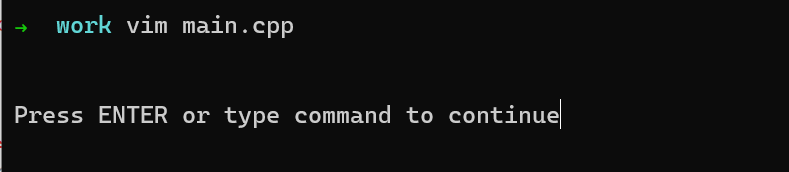
:!./a.out<CR>或者:!./main<CR>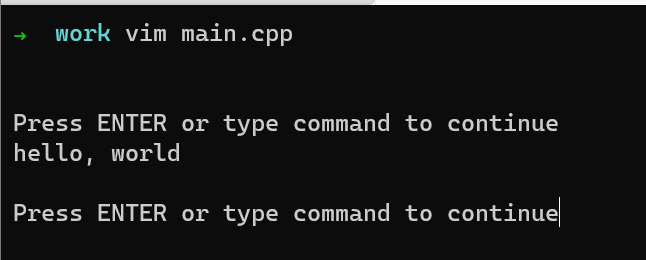
sudo in vim
:w !sudo tee %: 输入密码,即可修改,退出使用:q!
read from command
- such as
:r !ls, read the current directory and write it to current file
calculate
ctrl + aincrease the numberctrl + vselect the lines, andctrl + achange multi lines number with same increase step, or useg + ctrl + achange multi lines number with sort step
switch selection directions
- visual mode and with
o, for examplectrl + v + o
set -o vi
- use vi in bash